
Launcher: how to change your Android home screen
A launcher is the Android app that shows the home screen, icons, widgets, app drawer and navigation gestures. Every manufacturer has its own launcher, and you can install a third-party one from Google Play.
In plain words
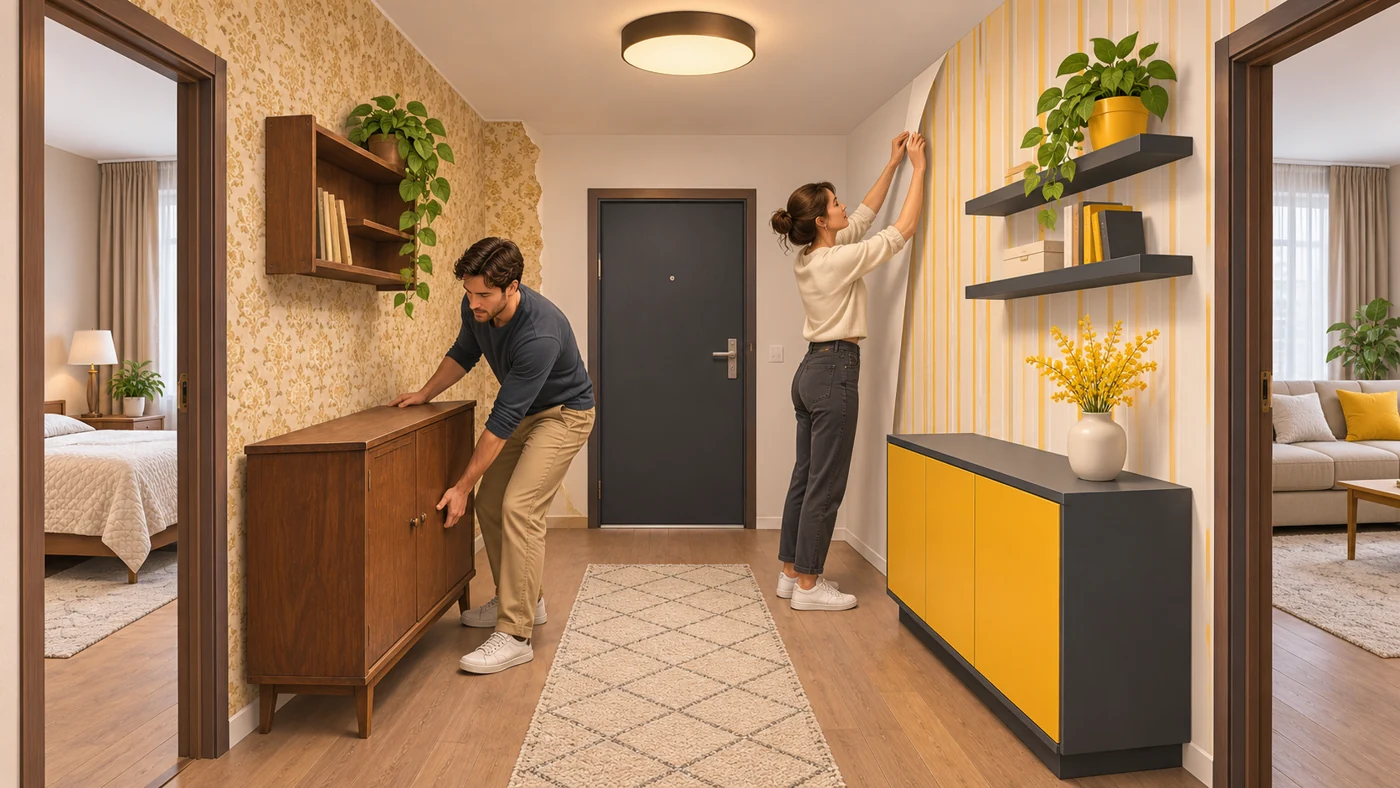
Your phone is like a flat, and the launcher is how the furniture is arranged in the hallway. You can leave it as the builder did or rearrange everything your way: different wallpaper, shelves, order of things. The flat itself (the system and apps) does not change.
How it works
- The launcher displays the home screen and app drawer.
- It manages icon layout, folders and widgets.
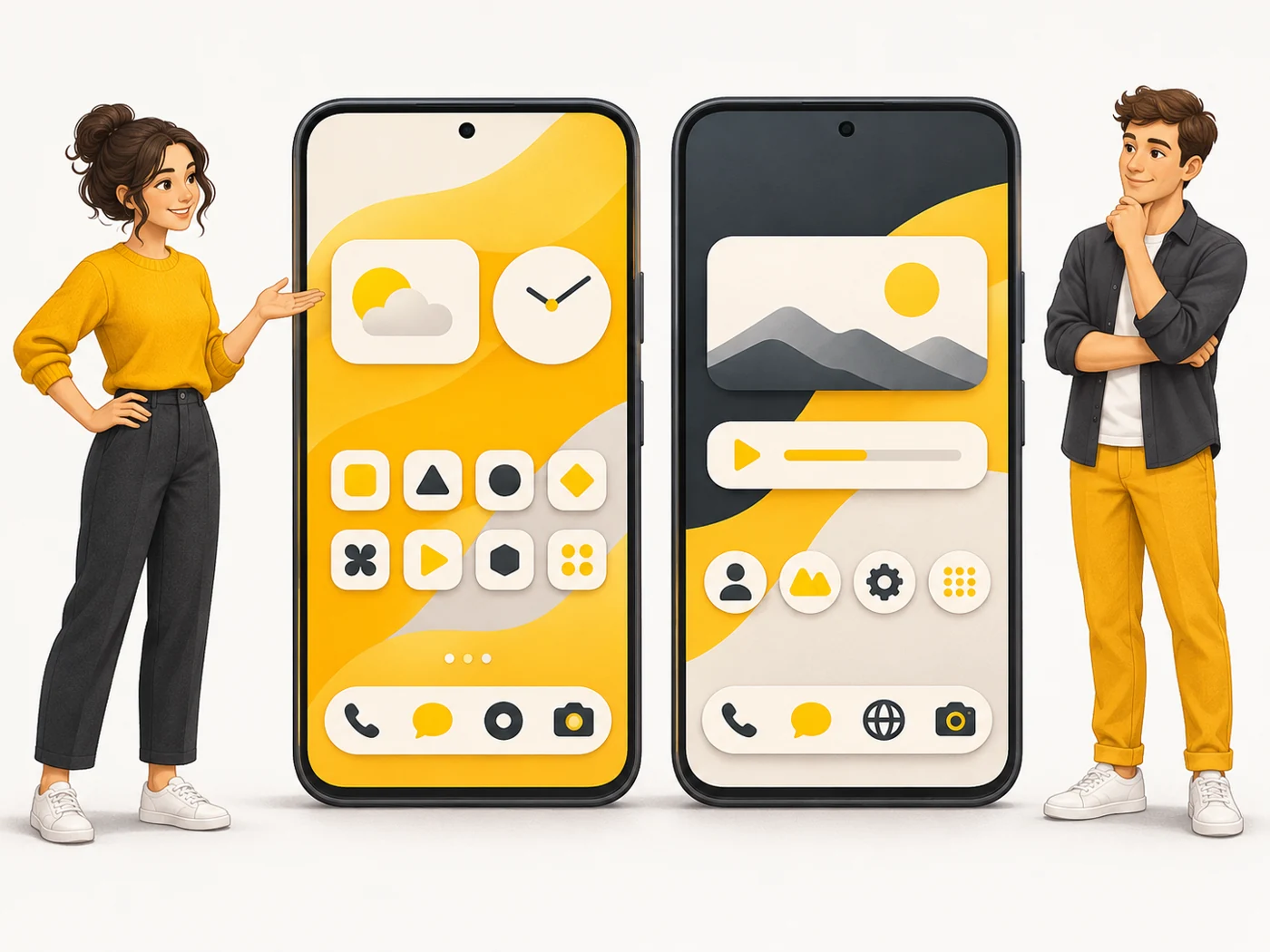
- Third-party launchers add their own themes, gestures and settings.
- In settings you choose which launcher is the default.
- Some manufacturer skins limit navigation gestures in third-party launchers.
Where you'll see it
Default launchers: Pixel Launcher, One UI Home (Samsung), System Launcher (Xiaomi). Third-party: Nova Launcher, Niagara, Microsoft Launcher, Smart Launcher. They are installed from Google Play.
Does it matter when buying
If you do not like how your home screen looks, or there are ads in the default launcher, a third-party one can help. Choose well-known launchers with good reviews and no unnecessary permissions.
Myths
- Myth: A launcher speeds up your phone. Reality: It can make the interface lighter, but it does not change the chip or memory.
- Myth: A launcher is a separate firmware. Reality: It is an ordinary app that you can uninstall.
FAQ
How do I change the launcher?
Settings - Apps - Default apps - Home app.
Are there launchers on iPhone?
No, iOS does not allow replacing the home screen, but you can customise widgets.
Are third-party launchers safe?
Well-known ones are; avoid unknown ones with suspicious permissions.