
Widgets: how to see useful information at a glance
A widget is a small interactive block from an app on your home screen, lock screen, watch or laptop panel. It shows the weather, calendar, photos, reminders or control buttons without opening the app itself.
In plain words
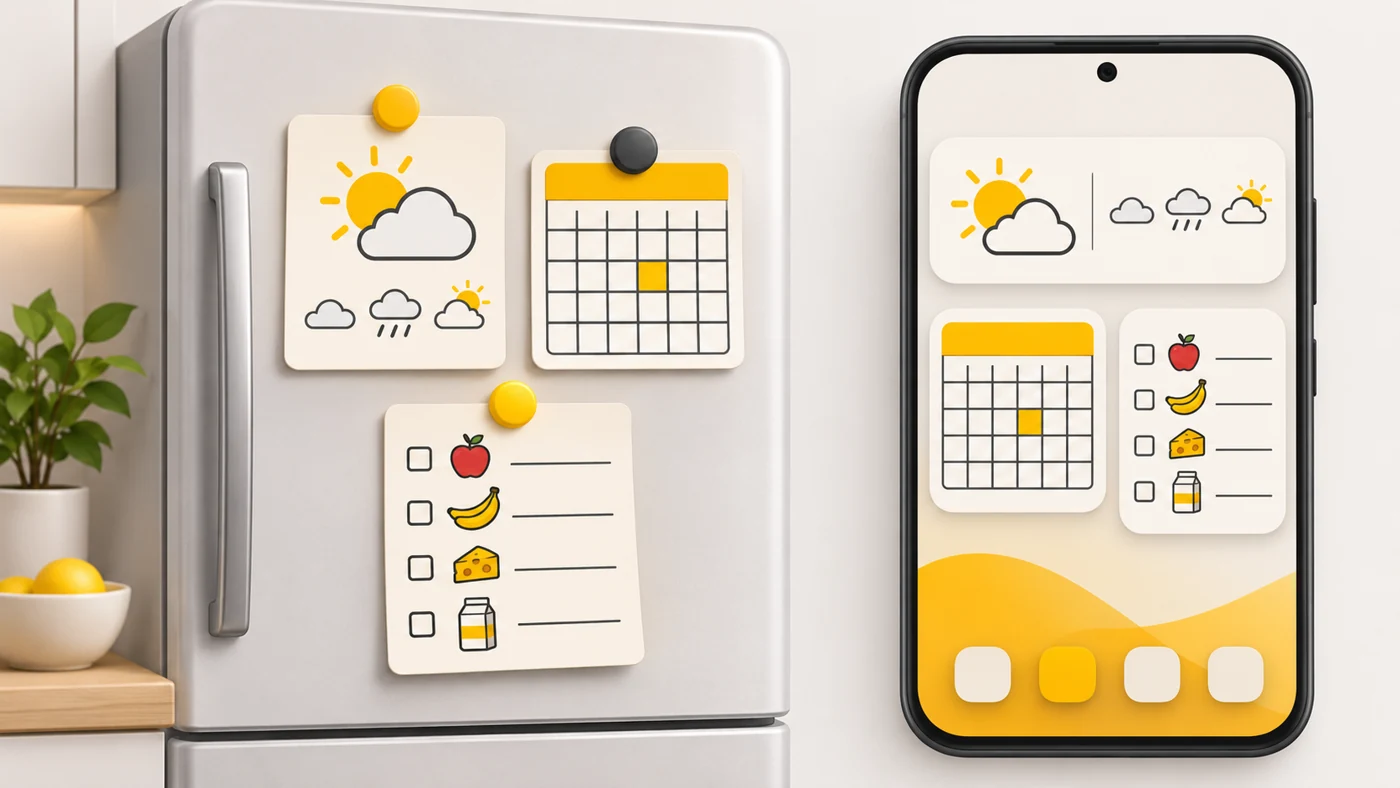
An app is like a whole fridge, and a widget is like a magnetic note on its door: you see the timetable, weather or shopping list without opening the fridge. Sometimes the note has a button - for example, to switch on the light in a room.
How it works
- The app gives the system a small block of information.
- You add the widget by pressing and holding an empty spot on the screen.
- The widget updates on a schedule or when the data changes.
- Interactive widgets let you press buttons right on the screen.
- You can resize a widget.
Where you'll see it
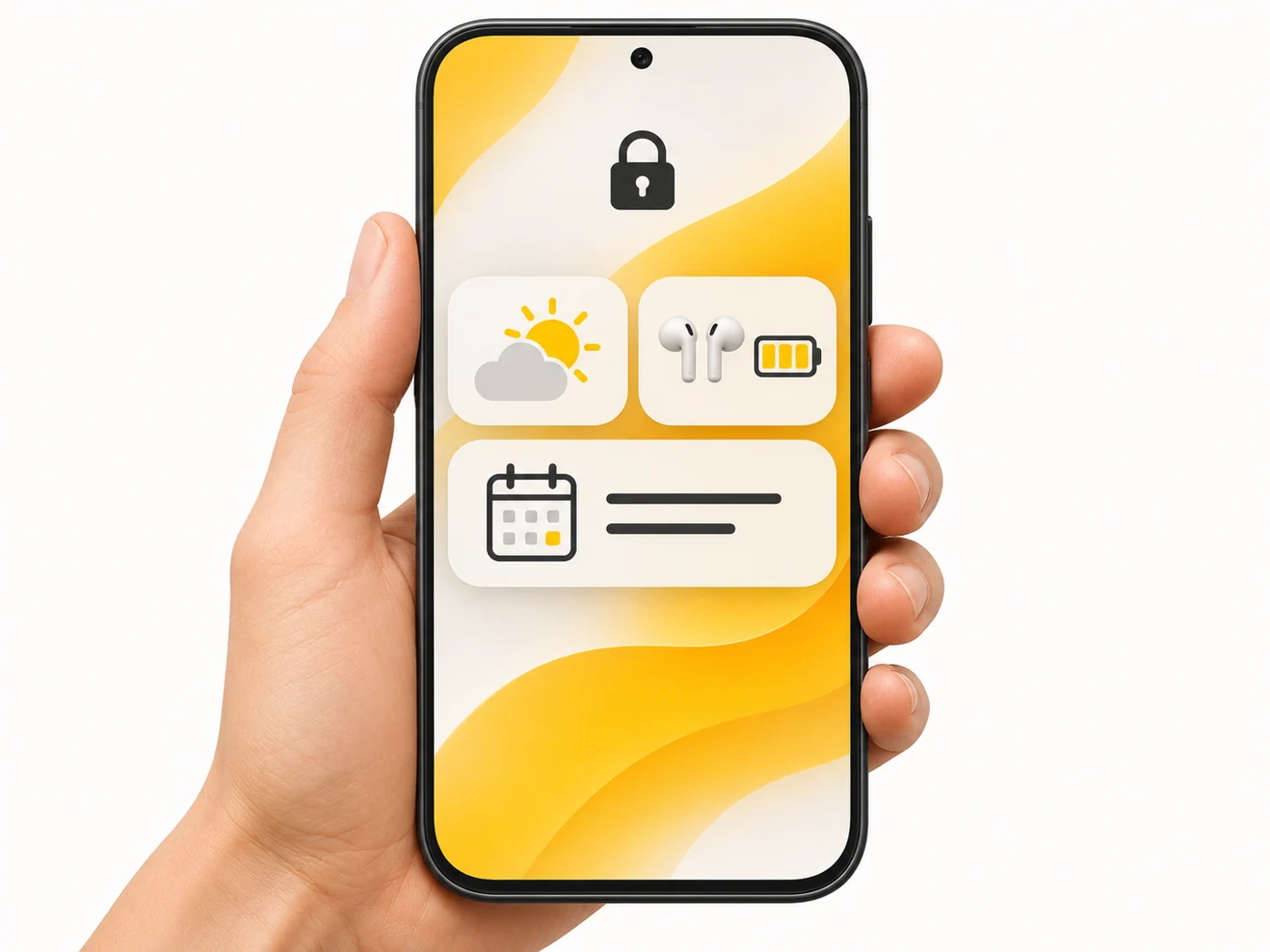
On Android: long-press the home screen - Widgets. On iPhone: on the home screen and the lock screen. On watches: tiles and watch-face complications. On Windows: the widgets panel.
Does it matter when buying
It is handy: you open apps less often and see what matters faster. Modern widgets have almost no effect on the battery, but dozens of frequently updating widgets can use a little. Widgets also make a phone simpler for kids and parents.
Myths
- Myth: Widgets drain the battery heavily. Reality: Modern systems control updates; the effect is small.
- Myth: Only Android has widgets. Reality: iPhones, watches and computers have them too.
FAQ
How do I add a widget?
Press and hold an empty spot on the home screen and choose "Widgets".
Can I add a widget to the lock screen?
Yes, on iPhone and many Android phones.
Why isn't my widget updating?
Battery saver or restrictions on the app's background activity.