
QoS on a router: how to prioritise games and video calls
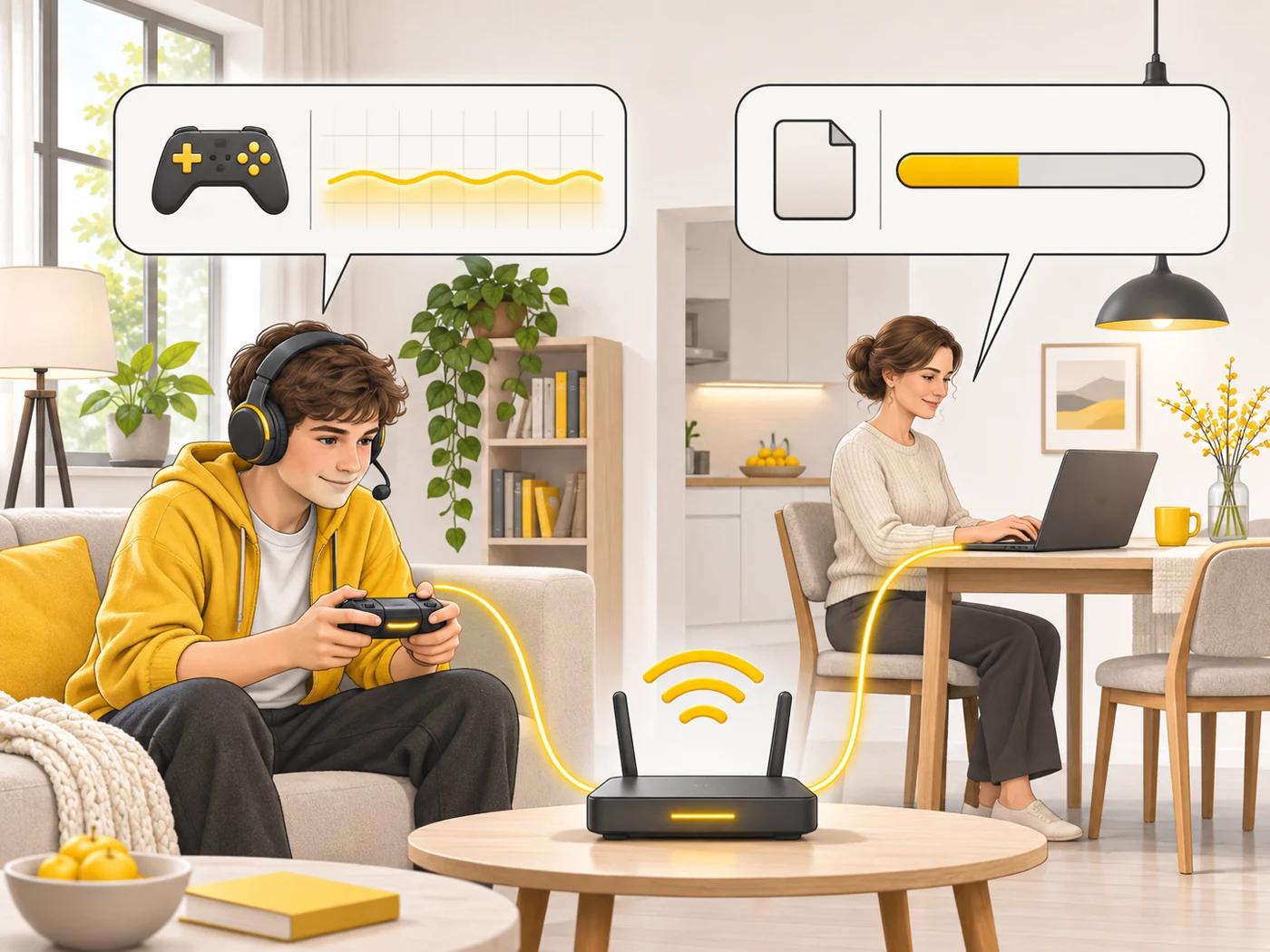
QoS (Quality of Service) is a router feature that shares internet bandwidth according to priorities: games, video calls and streams get a "green light", while downloads and updates wait.

In plain words
Imagine a rush-hour road carrying ambulances, buses and lorries. Without rules, everyone sits in the same jam. QoS is like a dedicated lane for the "ambulance": the game and video call go first, while a big file download - the lorry - travels a little slower but does not block anyone.
How it works
- The router identifies the type of traffic: game, video, call, download.
- You or the router set priorities for devices or apps.
- When the connection is full, higher-priority packets are sent first.
- Some routers recognise gaming traffic automatically.
- It is important to enter your plan's real speed so QoS works properly.
Where you'll see it
QoS is in the settings of most mid-range routers, especially gaming ones (ASUS, TP-Link Archer GE). It may be called "Traffic prioritisation", "Game Boost" or "Smart QoS".
Does it matter when buying
If someone at home plays online while others stream video and download games, QoS really does reduce lag. With a fast plan and few people, there is hardly any difference. I suggest turning on automatic QoS first and only adjusting it manually if you have problems.
Myths
- Myth: QoS increases internet speed. Reality: It only shares out the speed you have.
- Myth: QoS always helps. Reality: If the connection is not overloaded, QoS changes almost nothing, and bad settings can even hurt.
FAQ
How do I turn on QoS?
In the router settings under QoS, Bandwidth Control or Game Boost.
Does QoS help with poor Wi-Fi?
No, it manages the internet connection, not signal quality.
Does QoS reduce speed?
Sometimes slightly, because the router analyses the traffic - it depends on the processor.